
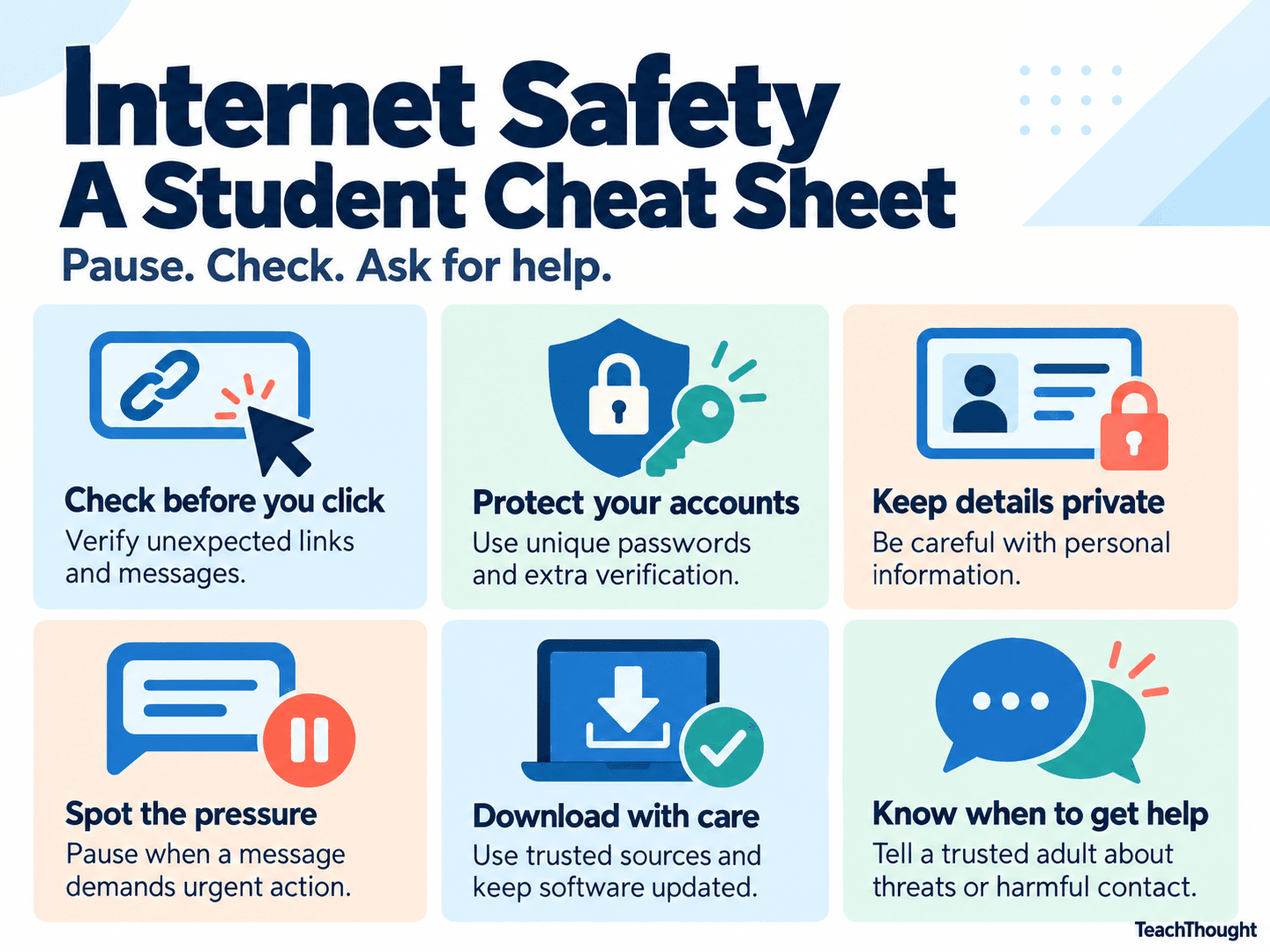
Internet safety is the ability to recognize a risky situation, make a safer choice, and get help when something goes wrong. For students, that might mean questioning a login request, leaving an uncomfortable conversation, or telling an adult that someone is threatening them.
These decisions happen in school accounts, games, group chats, search results, social platforms, and AI tools. Knowing how to use an app does not necessarily mean knowing when to trust a person, message, or request inside it.
This guide focuses on those decisions. It fits within the broader practice of digital citizenship, which also includes how students participate, communicate, and contribute online.
Internet Safety: A Quick Student Checklist
- Check unexpected requests. Verify links, login prompts, downloads, and requests for money.
- Protect your accounts. Use unique passwords and additional verification where available.
- Limit access to personal information. Consider what a person or service actually needs.
- Notice pressure and secrecy. Urgency, threats, and demands to hide a conversation are reasons to get help.
- Use AI with boundaries. Check important claims and protect sensitive information.
- Know your next step. Identify an adult and a reporting route before you need them.
1. Check the Request, Not Just the Sender
A message can appear to come from a teacher, friend, game platform, or school service and still be deceptive. Accounts can be compromised, and names and profile pictures can be copied. Correct spelling and a familiar logo do not establish trust.
Teach students to notice what the message asks them to do: enter a password, share a verification code, download a file, buy something, or act before a deadline. Phishing attempts can arrive through email, texts, direct messages, or QR codes.
A safer response: Open the service through its usual app or a saved bookmark. Check with the person through a separate, familiar channel. Avoid using the suspicious message’s own contact information to verify it.
Classroom example: A message says, “Your school account will close today. Sign in here.” Ask students how they could check the claim without opening the link.
2. Protect Accounts Before There Is a Problem
Use a long, unique password for each important account. A password manager can help. Turn on multifactor authentication when available, and follow school procedures for managed accounts. Never give someone a verification code or approve a sign-in request you did not initiate.
The Cybersecurity and Infrastructure Security Agency’s Secure Our World guidance identifies phishing awareness, strong passwords, multifactor authentication, and software updates as core protective actions.
Teach explicitly: Knowing someone’s password is not a measure of friendship. Students should also know where to get account-recovery help without sharing credentials with classmates.
3. Be Specific About Personal Information
“Never share anything online” does not prepare students to use legitimate school services. A more useful question is: Does this person or service need this information for what I am trying to do?
Practice with concrete examples: a game asking for a home address, a photo showing a student ID, a public post revealing a regular pickup location, or a quiz asking for details that could help someone guess account-recovery answers.
Teachers should use school-approved services and established procedures for student information. Before introducing a new tool, check what students must provide and whether the activity can work with less identifying information.
4. Recognize Pressure, Secrecy, and Manipulation
Unsafe contact does not always begin with a threat. It may begin with compliments, attention, gifts, in-game rewards, or an offer to help. Teach students to recognize changes in the interaction rather than relying only on whether someone is a “stranger.”
- Someone insists that a conversation stay secret from trusted adults.
- They pressure a student to move into a more private conversation.
- They request personal images, money, account access, or a meeting.
- They use guilt or threats when the student hesitates.
For age-appropriate discussions with older students, explain that threatening to share an intimate image to obtain money or more images is a form of sextortion. Students should seek help immediately, even if they previously trusted the person or shared something voluntarily. The National Center for Missing & Exploited Children’s sextortion resources provide guidance for educators and families.
5. Respond to Harassment Without Spreading It
Group chats can turn a private conflict into repeated harassment. Forwarding a humiliating screenshot, joining a pile-on, or sharing someone’s location can increase the harm even when a student did not start it.
Teach students to avoid retaliation, stop redistributing harmful material, use reporting tools, and involve a trusted adult. Blocking can limit contact, but it may not resolve a threat or harassment that continues elsewhere.
When documenting an incident, preserve useful details such as usernames, dates, and message links where safe. Do not ask students to download or forward sexual images of minors as evidence. Follow the school’s safeguarding procedures.
Use TeachThought’s rules for digital citizenship to extend the discussion from personal protection to responsibility for other people’s safety.
6. Treat Downloads and Permissions as Decisions
A free game modification, browser extension, study aid, or “required update” may ask for more access than students expect. A tool that looks useful can still create risk.
Use approved installation routes, keep software updated, and ask for help with unexpected installation prompts. Review requests to access a microphone, camera, files, or location in relation to the task. Students should not bypass school device protections to complete an assignment.
Classroom question: “A simple timer asks to read everything you type on websites. Is that access necessary for its purpose?”
7. Include AI Without Making It the Whole Lesson
AI adds new situations to internet-safety instruction, but students still need the everyday practices above. Give particular attention to three issues:
- Impersonation: A familiar voice or convincing image is not enough to verify an urgent request. The FTC’s guidance on AI voice-cloning scams recommends contacting the person through a number you already know.
- Private information: Do not paste passwords, identifiable student records, private conversations, or sensitive personal details into unapproved AI tools.
- Misplaced trust: A chatbot can sound confident, caring, or authoritative without being correct or equipped to help. Verify consequential claims, and involve a trusted adult when a conversation concerns threats, abuse, or personal safety.
Explain that creating or sharing a fabricated image of a classmate can cause real harm. A student targeted by an altered image needs support; they should not have to prove the image is authentic to be taken seriously.
The eSafety Commissioner’s information sheet on AI companions offers further guidance for educators on privacy, inappropriate content, and simulated relationships.
8. Teach What to Do After Something Goes Wrong
Prevention lessons are incomplete without a response plan. Students should know whom to contact and what information will help that person respond.
| Situation | First response |
|---|---|
| Entered a password on a suspicious page | Tell a trusted adult or school IT staff promptly. Use the legitimate service’s recovery process to secure the account. |
| Downloaded something suspicious | Stop using the file or installer and ask IT staff or a trusted adult for help. Do not install another advertised “fix.” |
| Received threats or coercive messages | Get adult help immediately. Do not send money or additional images. Use appropriate reporting channels. |
| Encountered disturbing content | Leave the content and tell a trusted adult. There is no need to keep viewing it to establish that it is harmful. |
Teachers should explain the limits of confidentiality and follow school reporting procedures. In the United States, suspected online child sexual exploitation can be reported to NCMEC’s CyberTipline. Immediate danger requires emergency assistance.
Practice Decisions, Not Just Rules
Use a fictional message, permission request, or group-chat scenario for a five-minute discussion. Ask students to identify the request, explain the concern, choose a next step, and name someone who could help. Do not require students to display personal accounts or disclose experiences to the class.
With younger students, rehearse stopping and asking an adult. With older students, add independent verification, account protection, and responding to pressure from peers. TeachThought’s digital citizenship action verbs can help turn broad expectations into observable actions.
A useful exit question: “If something felt wrong online tonight, what would you do first, and whom could you tell?”
TeachThought Staff 2026-09-25 10:00:00
Source link