
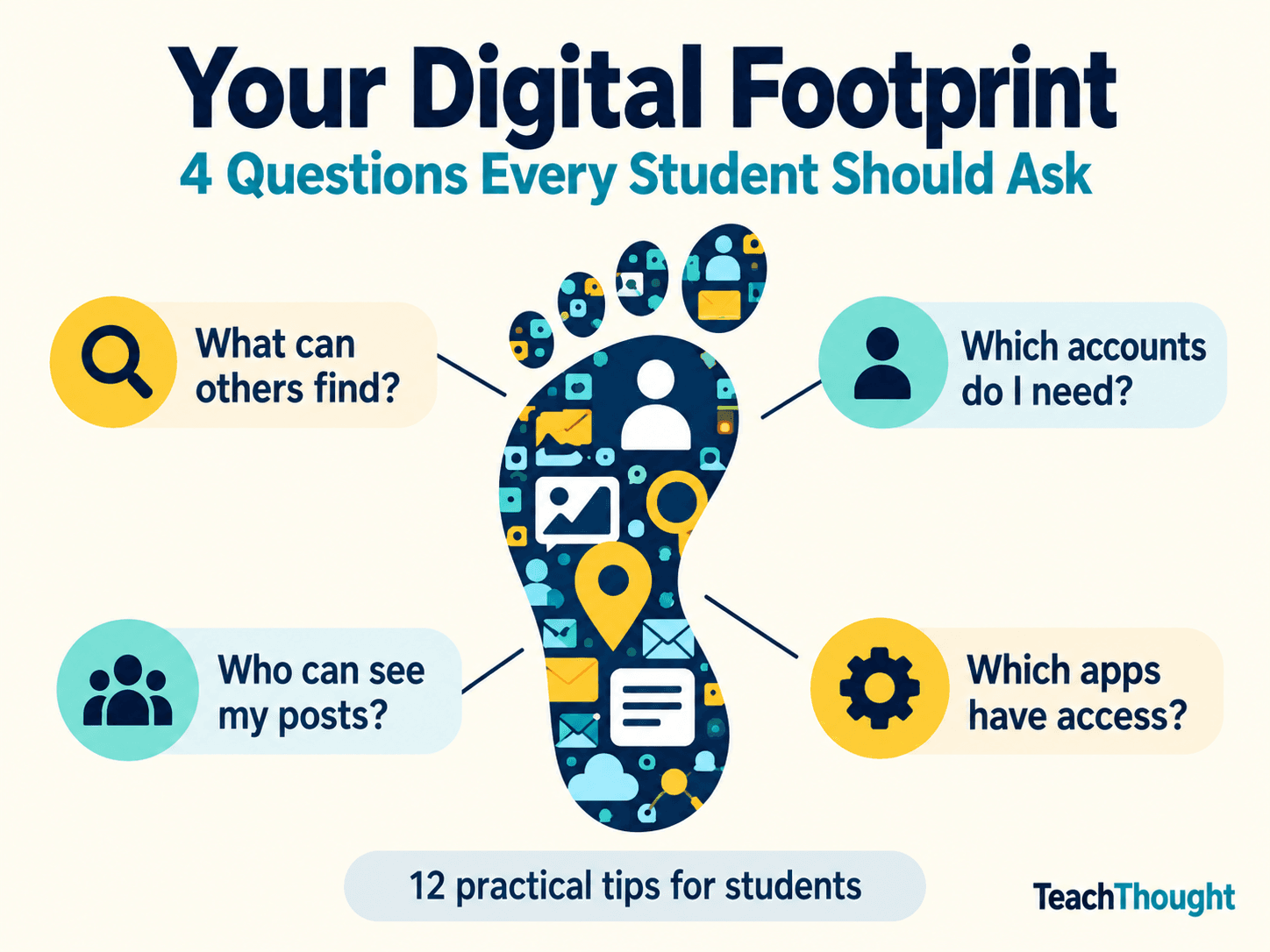
A digital footprint is the record created by what someone does online. It includes things a student chooses to share, such as posts and photos, as well as information collected through accounts, apps, and browsing activity. Students cannot control every part of that record, but they can make informed choices about what they share and which services they use.
Start with a short audit. Ask students to consider the questions below without requiring them to reveal personal accounts or search results to the class.
| Check | Question to ask |
|---|---|
| Public information | What could someone find by searching my name or username? |
| Accounts | Which accounts do I still use, and which could I close? |
| Sharing | Who can see my posts, photos, location, and contact details? |
| Access | Which apps and services have permission to use my information? |
12 Ways Students Can Manage Their Digital Footprints
1. Be kind, helpful, and understanding
A digital footprint also reflects how we treat people. Practicing digital citizenship means communicating with respect, considering other perspectives, and protecting other people’s privacy.
Ask permission before sharing someone else’s photo or message. Give credit for others’ work. Contribute something useful to a discussion. TeachThought’s rules for digital citizenship offer additional discussion points for the classroom.
2. Review privacy settings
Help students find the audience, tagging, location, and contact settings on platforms they use. They should check these settings periodically, especially after joining a new service.
A private account can limit visibility, but someone who can see a post may still copy or share it. The Federal Trade Commission’s guidance on kids and cell phones offers useful prompts for conversations about sharing and privacy.
3. Keep track of accounts
An old account may still contain photos, posts, or personal details. Students can make a private list of accounts they use, review what is visible, and close accounts they no longer need.
Before deleting an account, save anything worth keeping and check what the service says will happen to stored information. Deleting an app from a phone does not necessarily delete the account associated with it.
4. Think before sharing
Encourage students to pause before posting addresses, schedules, live locations, identifying details in photos, or information about someone else. A photo can reveal more than its subject: a school badge, street sign, or document in the background may disclose personal information.
A useful question is: “Would I be comfortable if this reached people beyond the audience I intended?” Students can practice that judgment with fictional examples before applying it to their own accounts.
5. Protect accounts with strong passwords
Use a different strong password for each important account. A password manager can help create and store them. Multifactor authentication adds another layer of protection where it is available.
Students using school accounts should follow their school’s account rules. The Cybersecurity and Infrastructure Security Agency’s password guidance explains how strong passwords and password managers help protect accounts.
6. Search for your public footprint
Students can search their name and commonly used usernames to see what appears publicly. They may find an old profile, a tagged photo, or information posted by someone else.
If something is concerning, help them identify an appropriate next step, such as changing a setting, requesting removal, or asking a trusted adult for help. If considering a service such as Privacy365, review its coverage, costs, and data practices before providing personal information.
7. Review connected apps and permissions
Using an existing account to sign in to another service may grant that service access to certain account information. Students should read the permissions requested, review connected apps, and remove access they no longer need.
They can also check device permissions for location, contacts, camera, microphone, and photos. The FTC explains how websites and apps collect and use information.
8. Consider a separate email address for sign-ups
A separate email address can help keep optional accounts and promotional messages apart from important school or personal correspondence. It should still have a strong password and a reliable recovery method. Students should follow family and school rules when creating accounts.
Use a regularly checked, appropriate address for important correspondence such as college applications. Tools that test email for spam can help people investigate delivery problems, though routine personal correspondence generally does not require a separate testing service.
9. Look for the privacy details in terms and policies
Students can learn to look for a few practical answers before signing up:
- What information does the service collect?
- Who can see it, and who might receive it?
- Can users delete their posts or account?
- What happens to their information afterward?
TeachThought’s own privacy policy can serve as one example to examine. For classroom activities, use selected passages and specific questions to make the reading manageable.
10. Treat sending as sharing
A message sent to one person may be forwarded or captured in a screenshot. Deleting a post does not guarantee that every copy disappears.
Students should consider the audience and possible consequences before sending something, especially when it concerns another person. If they make a mistake, help them take reasonable steps to correct it: remove the content, request that others stop sharing it, apologize when appropriate, or seek help.
11. Understand that activity can leave traces without a public post
A digital footprint includes more than material bearing a student’s name. Websites, apps, browsers, and accounts may retain information about searches, viewing, or other activity. The details depend on the service and its settings.
For example, Google says Search history can be saved to a Google Account when Web & App Activity is on, and it provides controls for reviewing and deleting that activity.
Help students distinguish between what other people can see publicly and what a service collects or saves. Changing one does not necessarily change the other.
12. Choose privacy tools for a specific purpose
Browser settings, tracker controls, app permissions, and account activity controls each address different concerns. Start by identifying what information a student wants to protect and who might have access to it.
A VPN can protect traffic between a device and the VPN provider, but it does not erase posts or prevent a signed-in service from recognizing its user. Students who are curious about VPN protocols can use them as a starting point for discussing what a tool protects and where its limits are.
TeachThought’s internet safety guide offers more classroom discussion topics.
Make It a Manageable Habit
Ask students: “What is one part of your digital footprint you can review or change this week?”
A privacy setting, an unused account, a connected app, or a posting habit gives them a concrete place to begin. Revisit the question periodically so that reviewing their digital footprint becomes a familiar practice.
TeachThought Staff 2026-09-23 21:00:00
Source link